ChatGPT Bild-Prompts: 20 Vorlagen für Unternehmen (GPT Image 2.5)
Kurz gesagt
Wir haben 20 Prompts für die Bildgenerierung in ChatGPT geschrieben, die mit ChatGPT Images 2.5 und den API-Modellen GPT-Image-2.5 Flare und Sunburst funktionieren. Die Stärke des Modells ist Text im Bild und präzises Bearbeiten hochgeladener Fotos, darum findest du hier auch Anzeigen, Infografiken und Bearbeitungs-Prompts. Texte im Bild stehen in Anführungszeichen, eckige Platzhalter ersetzt du durch deine Angaben. Bei Fotomotiven geben die Prompts außerdem Einstellungsgröße, Kamerawinkel, Objektiv, Licht und Bildaufteilung vor.
So promptest du ChatGPT Images 2.5 (GPT-Image-2.5) 6 Grundregeln
- Aktuelles Modell: Images 2.5 OpenAI hat am 8. September 2026 ChatGPT Images 2.5 vorgestellt, für alle ChatGPT-Tarife. In der API heißen die Modelle gpt-image-2.5-flare (schnell) und gpt-image-2.5-sunburst (für präzise Bearbeitung, längere Rechenzeit).
- Das Gerüst eines guten Prompts Unsere Prompts folgen einer festen Reihenfolge: Motiv und Handlung, Einstellungsgröße, Kamerawinkel, Objektiv mit Blende, Licht, Bildaufteilung, Farblook, Stimmung, danach Format und Ausschlüsse. Einschränkungen stehen wie von OpenAI empfohlen am Ende, bei komplexen Bildern helfen Zeilenumbrüche oder beschriftete Abschnitte. Bei reinen Grafiken entfallen Kamera und Licht.
- Text in Anführungszeichen Wörtlichen Text setzt du in Anführungszeichen oder Großbuchstaben und beschreibst Schrift, Größe, Farbe und Position. Schwierige Wörter und Markennamen kannst du Buchstabe für Buchstabe vorgeben.
- Formate und Auflösung In der API sind Seitenverhältnisse von 1:3 bis 3:1 möglich, Kanten durch 16 teilbar, höchstens 3840 Pixel pro Kante. Über 2560 x 1440 gilt die Ausgabe als experimentell. In ChatGPT nennst du das Format einfach im Prompt.
- Bearbeiten ohne Abdriften Beim Bearbeiten sagst du ausdrücklich, was gleich bleiben muss, und wiederholst das bei jeder Runde. Ändere pro Schritt nur eine Sache; Masken grenzen in der API den Bereich ein.
- Ausschlüsse ausdrücklich nennen Wasserzeichen, Zusatztext, fremde Logos und Deko schließt du im Prompt aus. Transparente Hintergründe liefert die API mit background transparent als PNG oder WebP.
Quellen: openai.com, developers.openai.com, developers.openai.com, developers.openai.com, help.openai.com
Spickzettel: Kamera, Licht und Komposition
Alle ChatGPT Images 2.5 (GPT-Image-2.5)-Prompts
20 Prompts
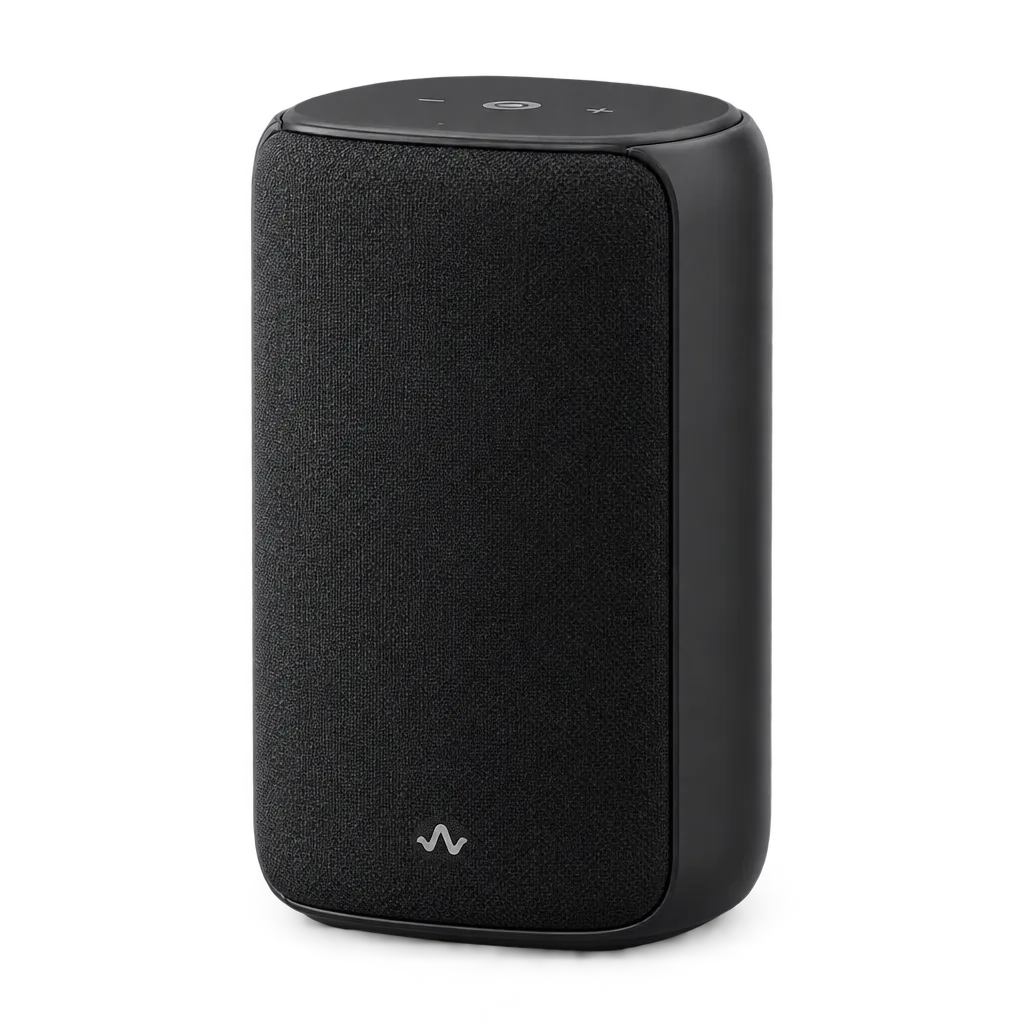
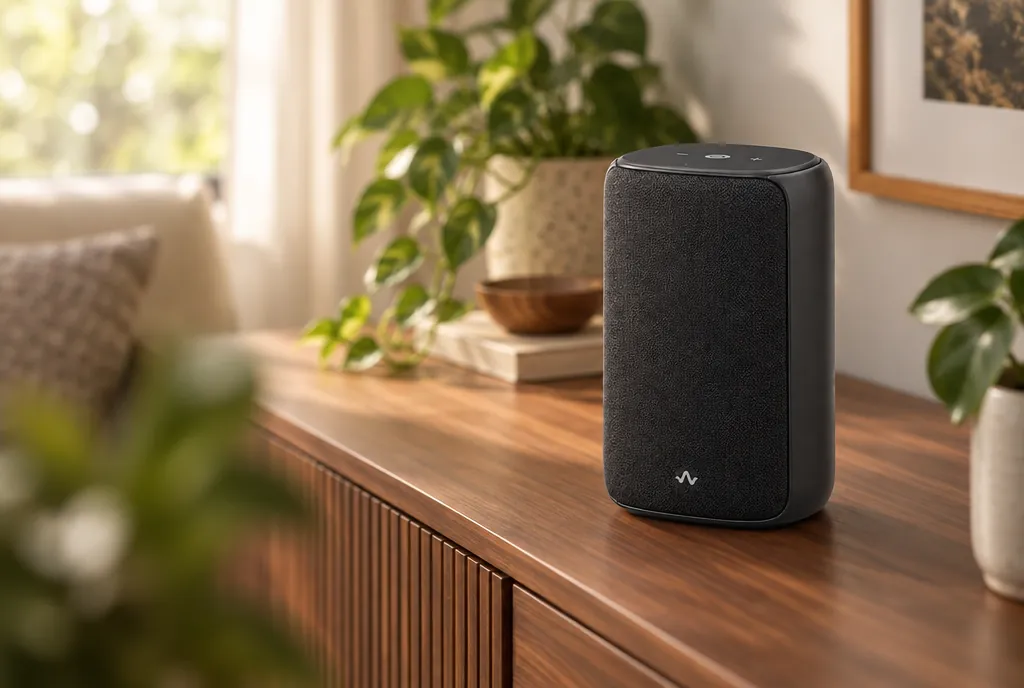
Ergebnis mit GPT Image 2.5 (über Higgsfield), unverändert übernommen. Eingesetzte Werte (1)
- PRODUKT
- a matte black wireless desk speaker with a fabric front
Produktbild ohne Hintergrund für Shop, Angebot oder Präsentation.
Photorealistic product photo of [PRODUKT] standing upright. Medium close-up, three-quarter front view at product height. 100mm macro lens look at f/11, the whole product sharp from front to back. Large softbox as key light from the upper left, a white bounce card as fill on the right, a thin strip light from behind for a clean rim along the edges, neutral 5600K, low contrast, a gentle contact shadow directly under the product. Centered with even margins on all sides. Accurate materials and colors without a color cast. Clean, precise mood. Transparent background, square 1:1 format. No text, no logo other than the one printed on the product, no props.
Platzhalter ausfüllen 1
Bei Freistellern zählt die Blende: f/11 hält das Produkt komplett scharf, weiche Kanten fallen beim Freistellen sofort auf. Transparenz klappt in der API mit background „transparent“ und PNG oder WebP; in ChatGPT bittest du ausdrücklich um einen transparenten Hintergrund.
Ausgangsbild: Beispiel aus dem Prompt „packshot-transparent“. Ergebnis mit GPT Image 2.5 (über Higgsfield), unverändert übernommen. Eingesetzte Werte (3)
- PRODUKT
- a matte black wireless desk speaker
- UNTERGRUND
- a walnut sideboard
- UMGEBUNG
- calm living room with plants
Echtes Produktfoto hochladen und in eine passende Umgebung setzen.
Use the uploaded photo of [PRODUKT] as the exact reference. Place it on [UNTERGRUND] in a [UMGEBUNG]. Medium shot from a slight high angle of about 20 degrees, three-quarter view of the product. 50mm lens look at f/2.8, the product sharp, the surroundings softly blurred. Soft morning light from a window on the left as key, warm 4500K, the room as natural fill, a subtle rim on the product's right edge, gentle contrast. Product on the right third, an out-of-focus object in the left foreground for depth. Natural, slightly warm color grade. Calm, inviting mood. Landscape 3:2 format. Keep the product's shape, proportions, colors, label and logo exactly as in the reference. No additional text.
Platzhalter ausfüllen 3
Lichtrichtung und Farbtemperatur müssen zum Referenzfoto passen, sonst wirkt das Produkt hineinkopiert: schau, von welcher Seite das Licht im Original kommt, und übernimm sie. Bei jeder Folgeänderung schreibst du erneut dazu, was gleich bleiben soll; OpenAI empfiehlt das gegen Abdriften.
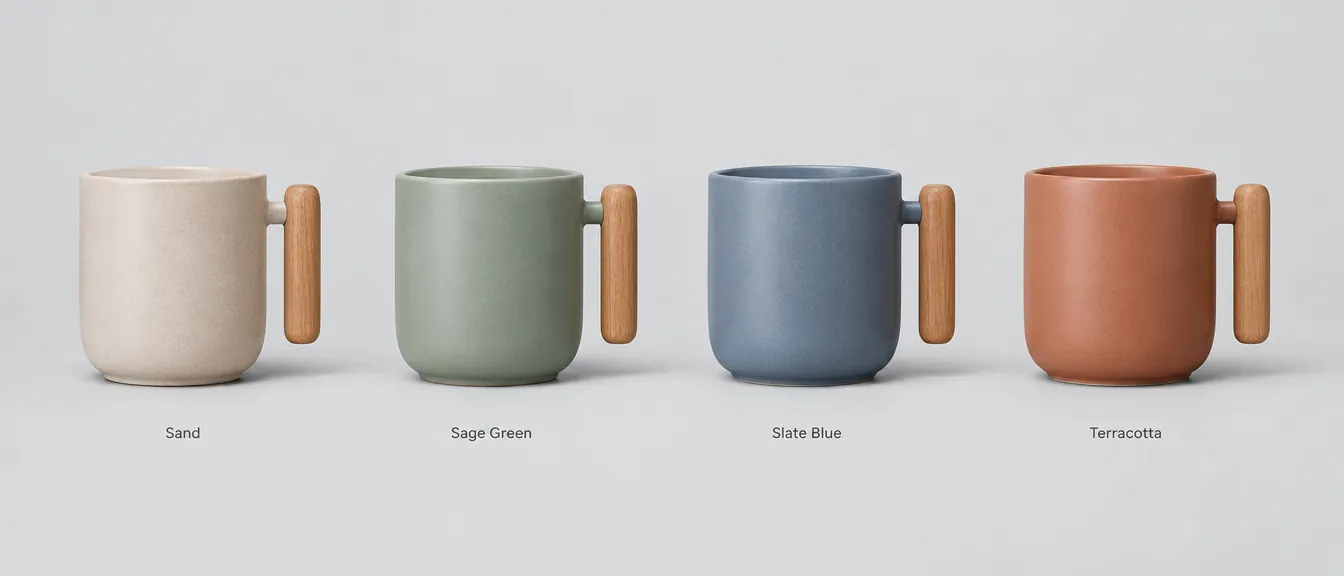
Ergebnis mit GPT Image 2.5 (über Higgsfield), unverändert übernommen. Eingesetzte Werte (3)
- ANZAHL
- four
- FARBEN
- sand, sage green, slate blue and terracotta
- PRODUKT
- a ceramic coffee mug with a wooden handle
Übersicht aller Farbvarianten für Shop oder Vertriebsunterlage.
Photorealistic product lineup of [PRODUKT] in [ANZAHL] color variants: [FARBEN]. Wide shot at eye level, straight front view, identical angle and size for every item. 70mm lens look at f/8, all items equally sharp, no perspective distortion toward the edges. One wide overhead softbox as key, soft fill from the front, 5600K, low contrast, matching soft shadows under each item. Evenly spaced in a single centered row on a light gray seamless background. True, unaltered product colors, neutral grade. Orderly, clear mood. A small clean label under each item with the color name in a simple sans serif font. Wide landscape 3:1 format.
Platzhalter ausfüllen 3
„no perspective distortion toward the edges“ verhindert, dass die äußeren Produkte schräg stehen. Gib die Farbnamen genau so an, wie sie unter den Produkten stehen sollen, und kontrolliere jede Beschriftung.
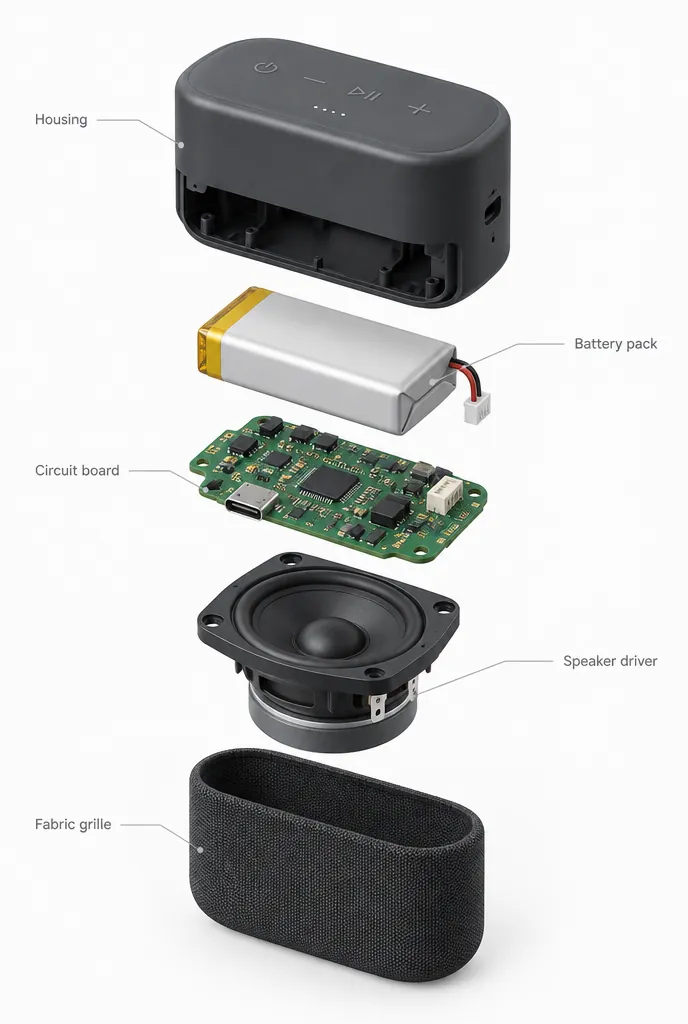
Ergebnis mit GPT Image 2.5 (über Higgsfield), unverändert übernommen. Eingesetzte Werte (2)
- BAUTEILE
- housing, battery pack, circuit board, speaker driver and fabric grille
- PRODUKT
- a portable wireless speaker
Technische Grafik für Datenblatt, Messe oder Vertrieb.
Clean exploded view illustration of [PRODUKT], all main components separated vertically along a central axis with equal spacing, in this order from top to bottom: [BAUTEILE]. The full assembly in frame, three-quarter view from a slight high angle so every part shows its top surface. Semi-realistic 3D render with a long-lens look, close to orthographic, everything sharp. Soft even studio light from the upper left, gentle fill, a subtle rim on the edges, soft shadows, low contrast. Axis centered, parts precisely aligned. Neutral white background, true product colors, matte finish. Precise, technical mood. Thin gray leader lines connect each part to a short label in a clean sans serif font, labels alternating left and right. Portrait 2:3 format. No other text.
Platzhalter ausfüllen 2
Die leichte Aufsicht („slight high angle“) zeigt jedes Bauteil von oben, so bleiben flache Teile erkennbar. Liste die Bauteile in der richtigen Reihenfolge von oben nach unten auf, das Modell übernimmt diese Ordnung meist direkt.
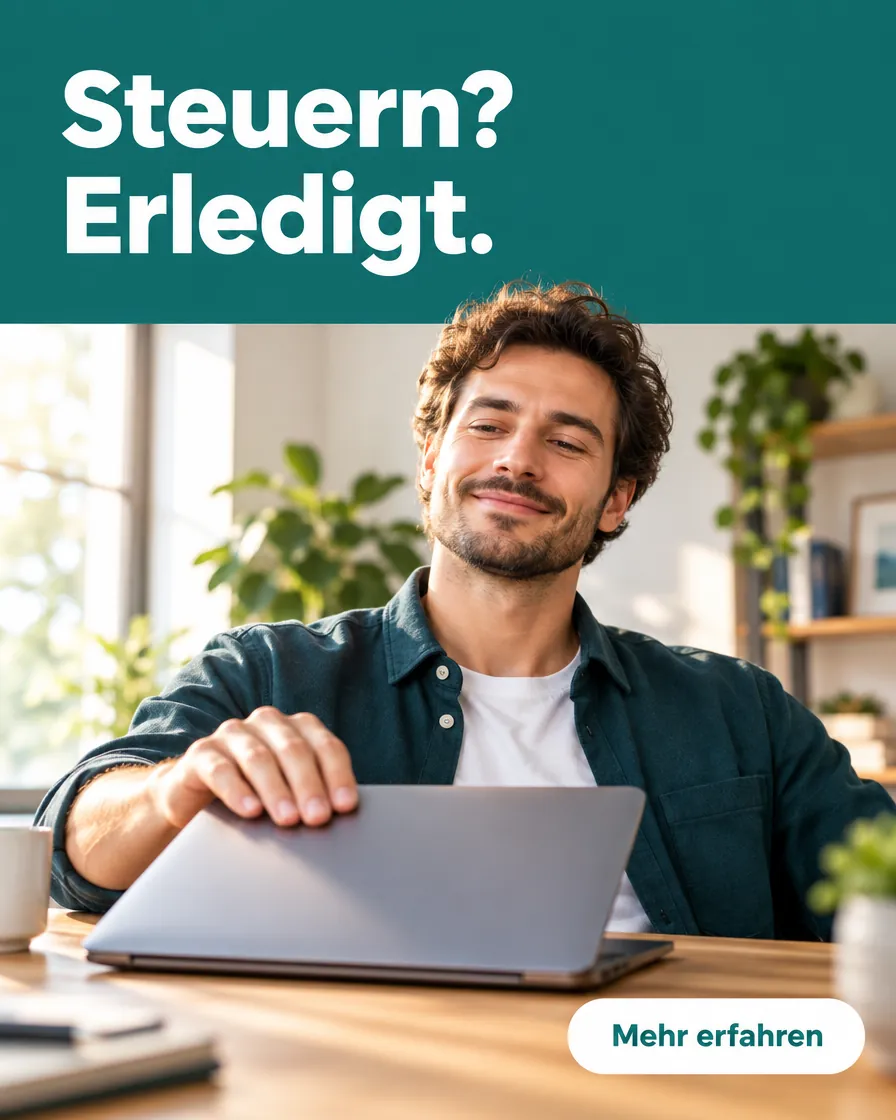
Ergebnis mit GPT Image 2.5 (über Higgsfield), unverändert übernommen. Eingesetzte Werte (4)
- ANGEBOT
- Free 14-day trial
- HEADLINE
- Steuern? Erledigt.
- MARKENFARBE
- deep teal (#0F6E6E)
- MOTIV
- a relaxed founder closing a laptop at a sunny desk
Fertiges Anzeigenmotiv mit Schrift für Meta oder LinkedIn.
Social media ad for [ANGEBOT]. Bottom two thirds: bright photo of [MOTIV], medium close-up from a slight low angle, 50mm lens look at f/4 with a softly blurred background, soft window light from the left, warm 5000K, gentle contrast. Top third: a solid [MARKENFARBE] area with the headline "[HEADLINE]" in bold white sans serif, left aligned, large and easy to read. Bottom right: a rounded white button with the text "Mehr erfahren". Clean modern layout with a clear hierarchy, palette of [MARKENFARBE] and white, high contrast. Confident, friendly mood. 4:5 portrait format. No other text, no watermark.
Platzhalter ausfüllen 4
Der weiche Hintergrund bei f/4 hält das Foto ruhig, damit Headline und Button nicht dagegen ankämpfen. Schreib Headline und Button wörtlich in Anführungszeichen; schwierige Wörter kannst du laut OpenAI Buchstabe für Buchstabe vorgeben.
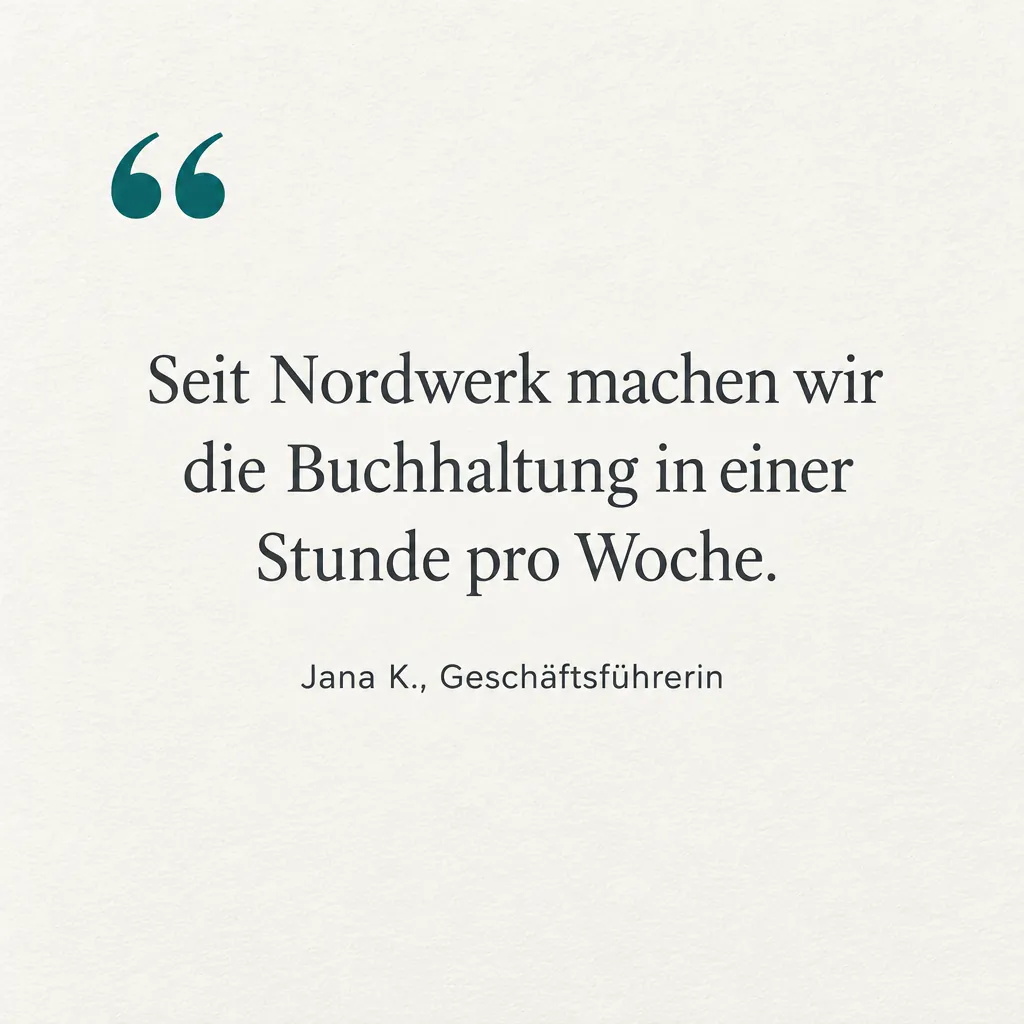
Ergebnis mit GPT Image 2.5 (über Higgsfield), unverändert übernommen. Eingesetzte Werte (3)
- MARKENFARBE
- deep teal (#0F6E6E)
- QUELLE
- Jana K., Geschäftsführerin
- ZITAT
- Seit Nordwerk machen wir die Buchhaltung in einer Stunde pro Woche.
Kachel mit einem Kundenzitat oder einer Kernaussage.
Square social media tile designed as a typographic card. Flat straight-on view, as if photographed directly from above. Soft light grazing from the left so a subtle paper texture on the off-white background becomes visible, very low contrast, no cast shadows. A large opening quotation mark in [MARKENFARBE] at the top left. Centered quote text "[ZITAT]" in an elegant dark gray serif font, generous line spacing. Below it, smaller text "[QUELLE]" in sans serif. Lots of white space, the text block slightly above the optical center. Off-white, dark gray and [MARKENFARBE] only. Calm, trustworthy mood. 1:1 format. No images, no extra text.
Platzhalter ausfüllen 3
Streiflicht von der Seite („light grazing from the left“) macht die Papierstruktur sichtbar, ohne den Text zu stören. Halte Zitate unter etwa 20 Wörtern, sonst wird die Kachel im Feed schwer lesbar.
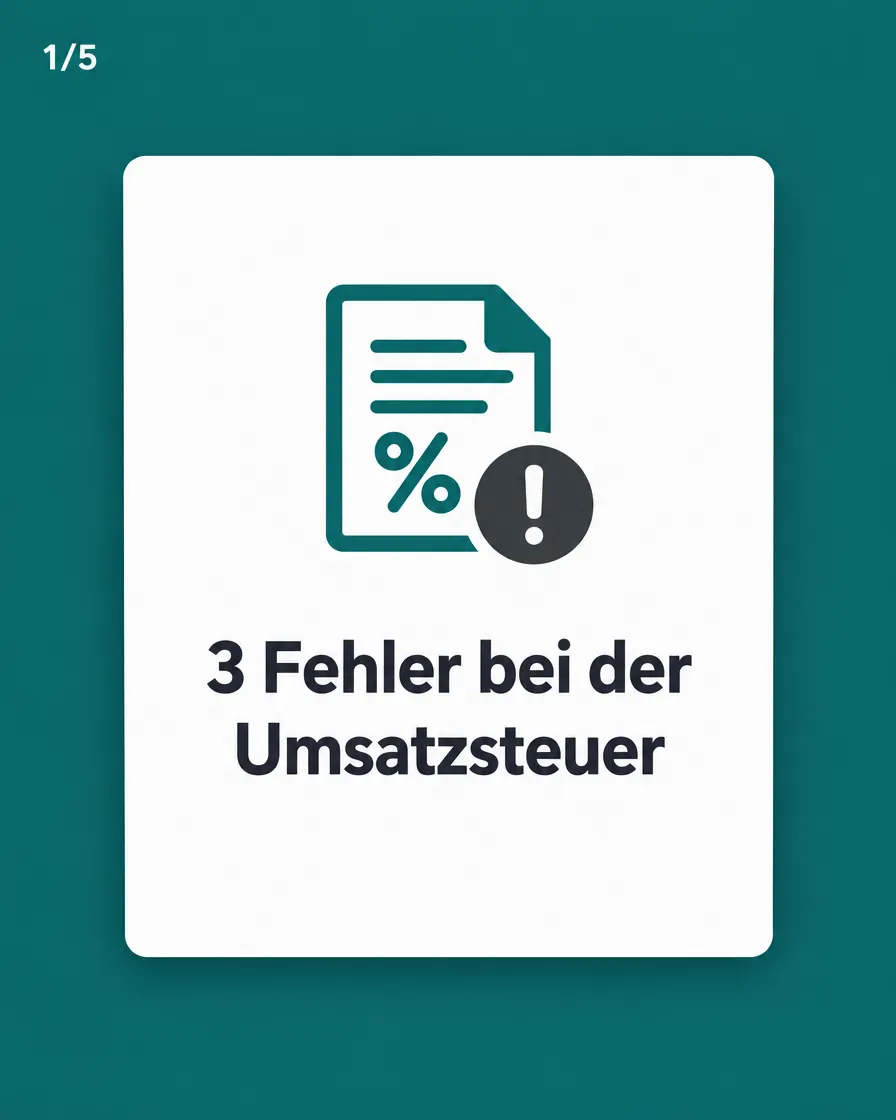
Ergebnis mit GPT Image 2.5 (über Higgsfield), unverändert übernommen. Eingesetzte Werte (3)
- MARKENFARBE
- deep teal (#0F6E6E)
- SLIDE_HEADLINE
- 3 Fehler bei der Umsatzsteuer
- SLIDE_NUMMER
- 1/5
Mehrere Slides für ein Instagram- oder LinkedIn-Karussell.
Create slide [SLIDE_NUMMER] of a social media carousel. Consistent layout for the whole series: [MARKENFARBE] background, a white rounded card in the center taking about 70 percent of the width, slide number at the top left. Flat straight-on view with one soft drop shadow under the card, as if lit from directly above. Inside the card: one simple flat icon above the headline "[SLIDE_HEADLINE]" in bold dark sans serif, centered. Palette limited to [MARKENFARBE], white and dark gray. Clear, calm mood. 4:5 portrait format. Same fonts, spacing, shadow and colors as the previous slides. No other text.
Platzhalter ausfüllen 3
Feste Maße wie „70 percent of the width“ halten die Karte auf jeder Slide gleich groß. Erzeuge die Slides nacheinander im selben Chat und schreib „same style as before“ dazu.
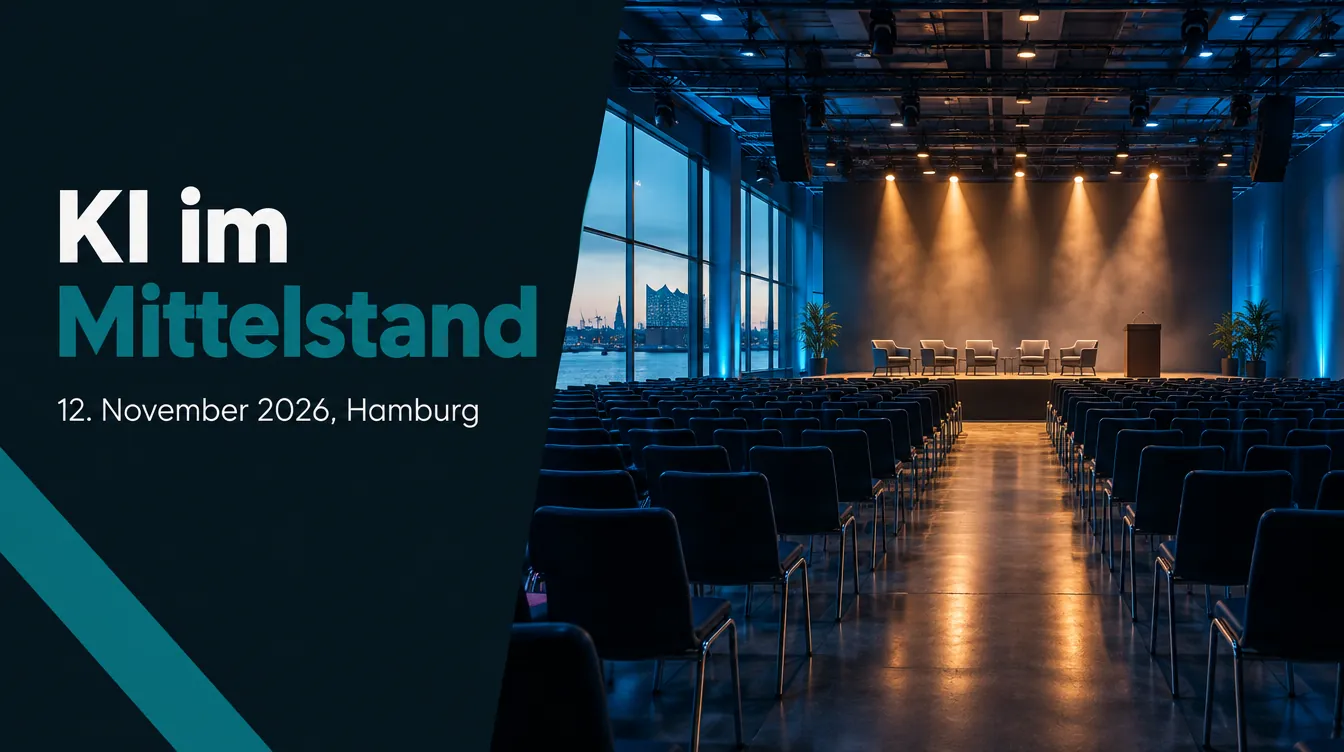
Ergebnis mit GPT Image 2.5 (über Higgsfield), unverändert übernommen. Eingesetzte Werte (4)
- DATUM_ORT
- 12. November 2026, Hamburg
- EVENT_TITEL
- KI im Mittelstand
- EVENT_TYP
- Business-Frühstück
- MARKENFARBE
- deep teal (#0F6E6E)
Visual für Webinar, Messe oder Kundenevent.
Event announcement graphic for a [EVENT_TYP]. Right half: photorealistic image of a modern venue with an empty stage, wide establishing shot from the back of the room at eye level, 24mm lens look at f/8, rows of chairs as leading lines toward the stage, warm 3200K stage spots as key, cool blue ambient fill, light haze in the beams, rich contrast. Left half: the title "[EVENT_TITEL]" in large bold sans serif on a dark background, below it the date and place "[DATUM_ORT]" in a lighter weight. Color accents in [MARKENFARBE]. Anticipating, professional mood. 16:9 landscape format. No logos, no other text.
Platzhalter ausfüllen 4
Die Stuhlreihen als Fluchtlinien („leading lines toward the stage“) ziehen den Blick zur Bühne. Datum und Ort prüfst du nach jeder Generierung Zeichen für Zeichen, Zahlen sind die häufigste Fehlerquelle.
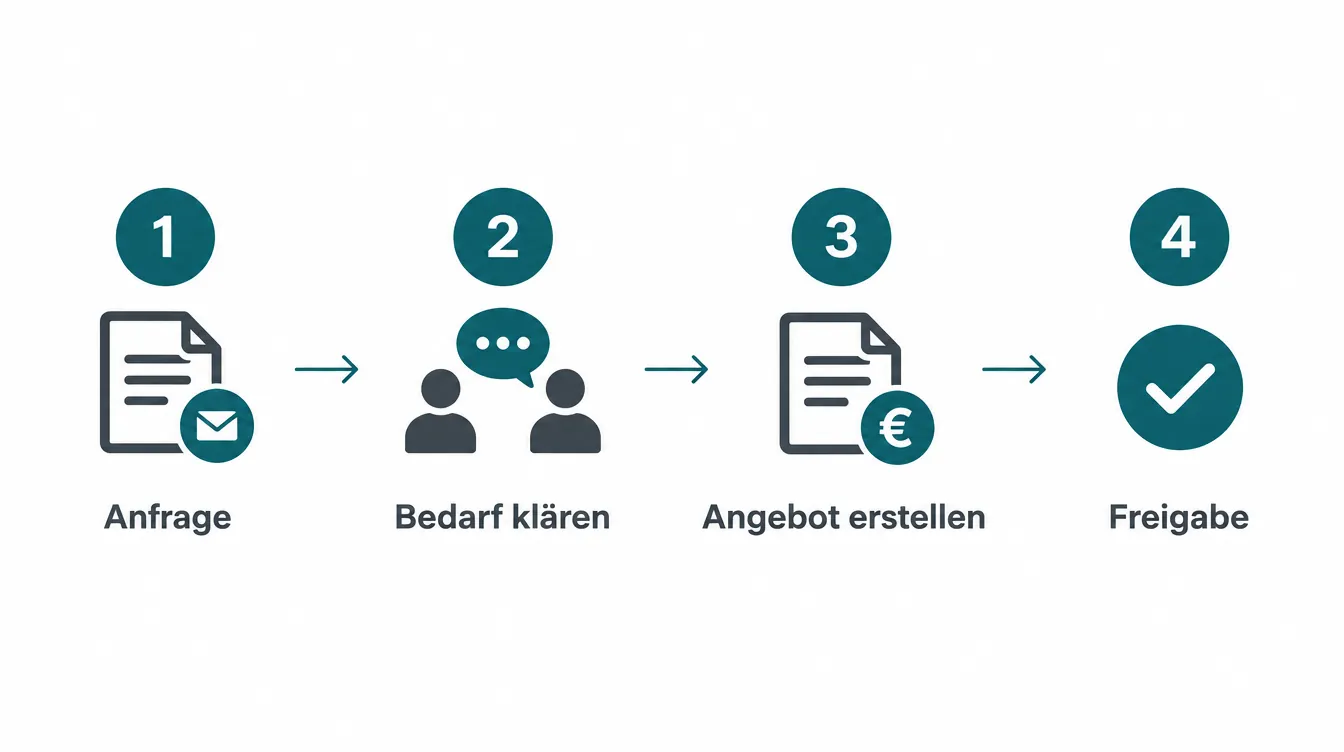
Ergebnis mit GPT Image 2.5 (über Higgsfield), unverändert übernommen. Eingesetzte Werte (4)
- ANZAHL_SCHRITTE
- four
- MARKENFARBE
- deep teal (#0F6E6E)
- PROZESSNAME
- Angebot in 48 Stunden
- SCHRITT_LABELS
- Anfrage, Bedarf klären, Angebot erstellen, Freigabe
Grafik, die einen Ablauf mit mehreren Schritten erklärt.
Clean infographic explaining the process "[PROZESSNAME]". Flat straight-on view, no perspective, no lighting effects. [ANZAHL_SCHRITTE] steps from left to right connected by thin arrows, evenly spaced along one horizontal line through the vertical center. Each step: a numbered circle in [MARKENFARBE], a simple flat icon and a short label below. Labels in this exact order: [SCHRITT_LABELS]. Wide margins, generous spacing. White background, dark gray sans serif text, [MARKENFARBE] as the only accent. Clear, factual mood. 16:9 landscape format. No extra text.
Platzhalter ausfüllen 4
Bei Infografiken schreibst du ausdrücklich „flat, no perspective“, sonst baut das Modell gern 3D-Effekte ein. Für kleine Schrift empfiehlt OpenAI die Qualitätsstufe medium oder höher.
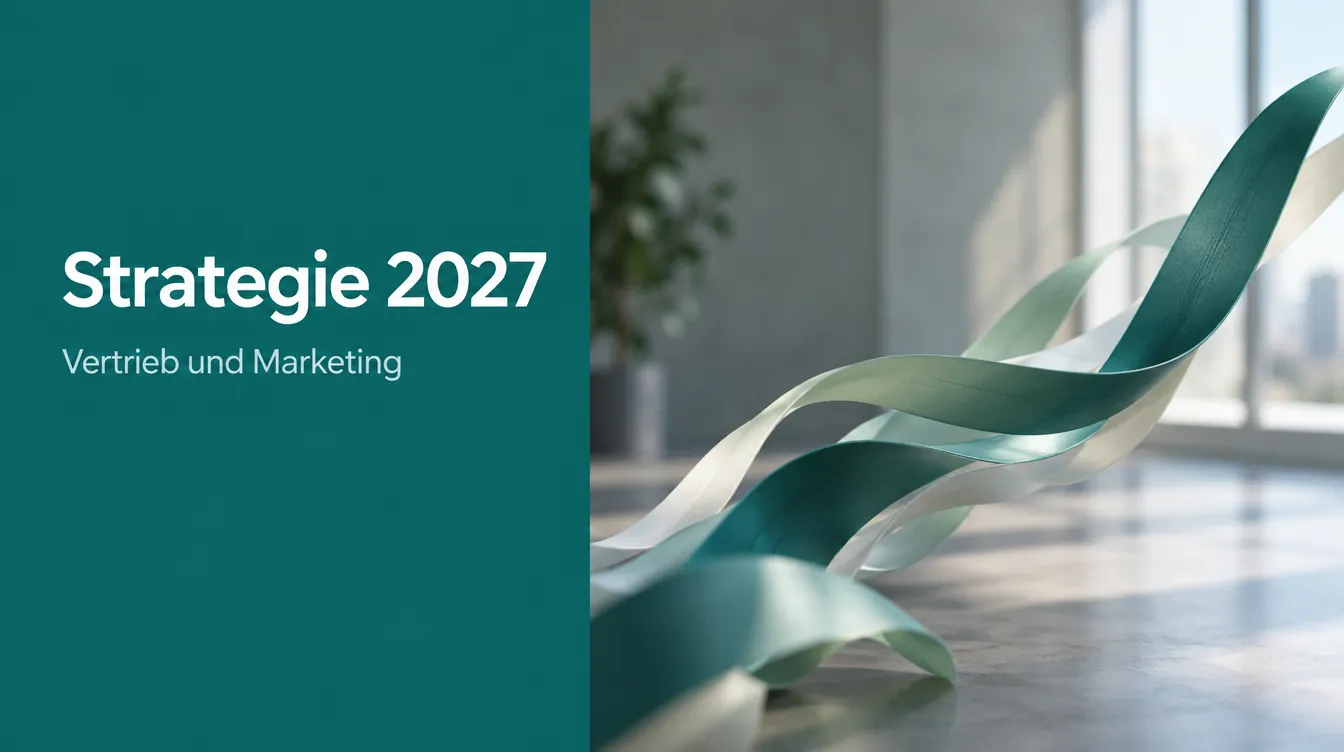
Ergebnis mit GPT Image 2.5 (über Higgsfield), unverändert übernommen. Eingesetzte Werte (4)
- MARKENFARBE
- deep teal (#0F6E6E)
- MOTIV
- abstract flowing ribbons suggesting growth
- TITEL
- Strategie 2027
- UNTERTITEL
- Vertrieb und Marketing
Erste Folie mit Bild und Titel in einem Rutsch.
Presentation title slide. Right 60 percent: photorealistic image of [MOTIV], medium wide shot at eye level, 35mm lens look at f/2.8 with soft background blur, natural window light from the right as key, 5000K, soft shadows, moderate contrast, the subject placed toward the outer right edge. Left 40 percent: a solid [MARKENFARBE] panel with the title "[TITEL]" in large white sans serif and the subtitle "[UNTERTITEL]" in smaller light text below. Image colors kept muted so the panel stays dominant. Clean, modern, corporate mood. 16:9 format. No logos, no other text.
Platzhalter ausfüllen 4
Licht von rechts im Foto lenkt den Blick zurück zur Titelfläche links. Wenn du die Folie später in PowerPoint bearbeiten willst, lass den Text weg und setze ihn selbst darüber.
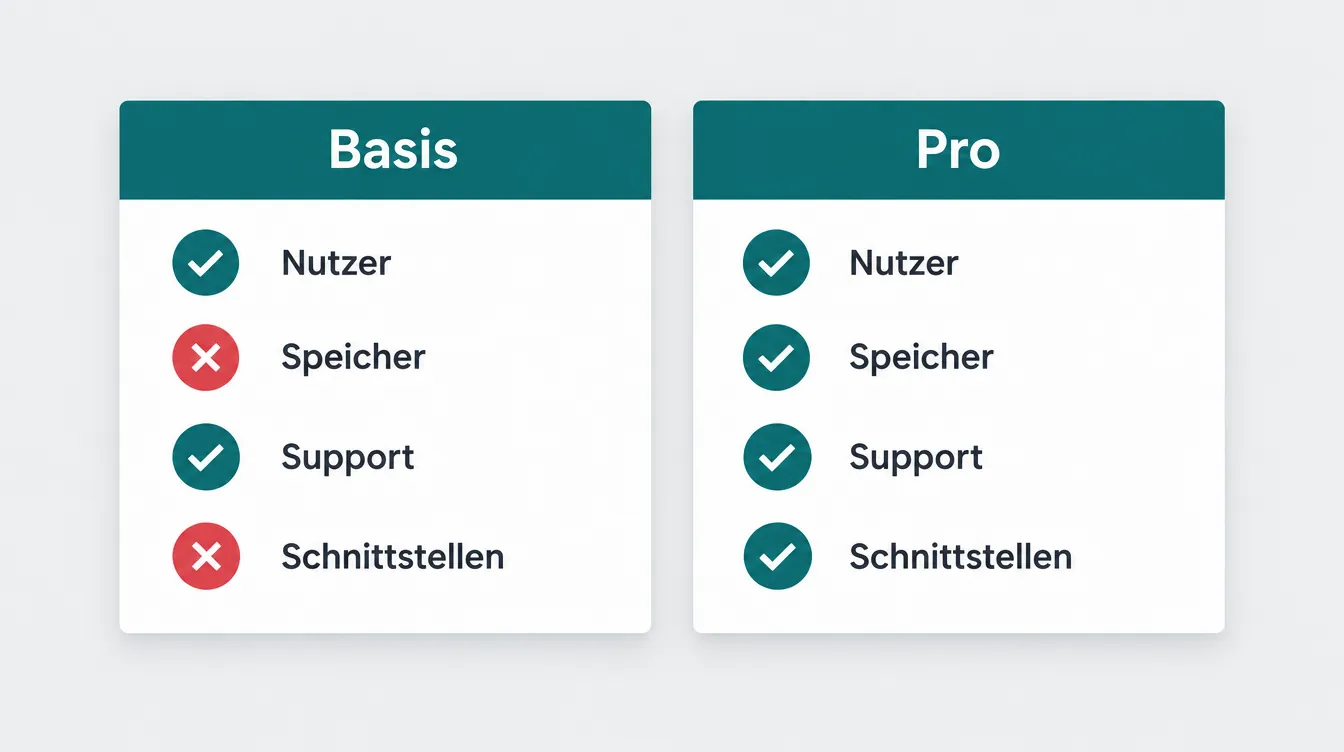
Ergebnis mit GPT Image 2.5 (über Higgsfield), unverändert übernommen. Eingesetzte Werte (4)
- MARKENFARBE
- deep teal (#0F6E6E)
- OPTION_A
- Basis
- OPTION_B
- Pro
- VERGLEICHSPUNKTE
- Nutzer, Speicher, Support, Schnittstellen
Übersicht, die zwei Varianten gegenüberstellt.
Simple comparison graphic with two columns titled "[OPTION_A]" and "[OPTION_B]". Flat straight-on view, no perspective. Under each title, four short rows with a check or cross icon and a label: [VERGLEICHSPUNKTE]. Two white cards of equal width side by side on an aligned grid, a subtle soft shadow under each card as if lit from above. Light gray background, accent color [MARKENFARBE] for the headers, clear dark sans serif text. Neutral, factual mood. 16:9 format. No additional text or decoration.
Platzhalter ausfüllen 4
Gib die Vergleichspunkte als Liste mit Zuordnung an (zum Beispiel „Option A: check, Option B: cross“), sonst verteilt das Modell die Haken selbst.
Ergebnis mit GPT Image 2.5 (über Higgsfield), unverändert übernommen. Eingesetzte Werte (2)
- MARKENFARBE
- deep teal (#0F6E6E)
- THEMA
- customer growth
Hintergrundgrafik für Folien mit Kennzahlen, die Zahlen setzt du selbst.
Abstract corporate illustration suggesting growth and data for the topic [THEMA]: soft rising curves and floating translucent bar shapes. Low angle view along the shapes, so they rise toward the upper right. 35mm lens look at f/1.8, the nearest shapes sharp, distant ones dissolving into bokeh. Soft glow from within the shapes, a cool backlight, low contrast. A large calm empty area in the center for overlaid numbers, the shapes pushed to the edges. Palette of [MARKENFARBE], navy and white, smooth gradients. Calm, optimistic mood. 16:9 format. No numbers, no letters, no text.
Platzhalter ausfüllen 2
Offene Blende („f/1.8“) lässt die Formen am Rand verschwimmen, die Mitte bleibt ruhig für deine Zahlen. Echte Kennzahlen gehören in ein Diagramm aus deinen Daten, das Bild liefert nur die Stimmung.

Ergebnis mit GPT Image 2.5 (über Higgsfield), unverändert übernommen. Eingesetzte Werte (1)
- BRANCHE
- mechanical engineering
Platzhalterbild für Karriereseite oder Stellenanzeige.
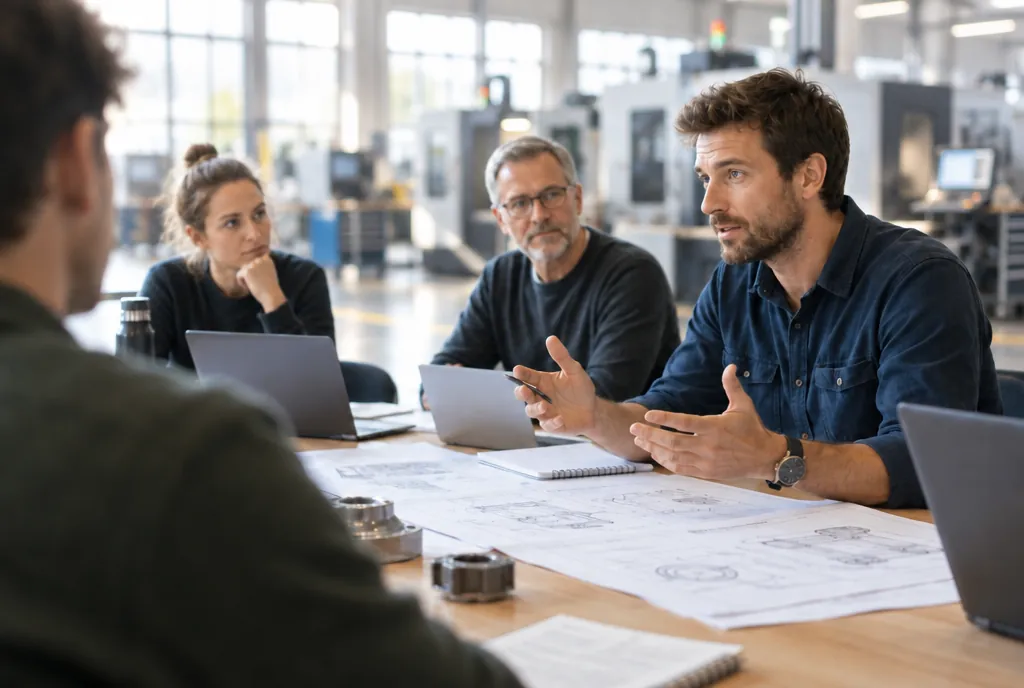
Photorealistic candid photo of a small team of fictional colleagues in a [BRANCHE] company working together at a large table with laptops and printed plans, mixed ages, relaxed and focused body language, one person explaining something. Medium shot at eye level, slightly over the shoulder of a person in the foreground. 35mm lens look at f/2.8, focus on the person explaining, the others gently soft. Natural daylight from a large window on the left as key, soft 5600K, light walls as fill, gentle contrast. Rule of thirds with the speaker on the right intersection, a blurred shoulder framing the left edge. Natural color grade, realistic skin texture with natural imperfections, light grain. Authentic, collaborative mood. Landscape 3:2. No logos, no text, no watermark.
Platzhalter ausfüllen 1
Der Blick über eine Schulter („slightly over the shoulder“) wirkt sofort weniger gestellt. Wörter wie „realistic skin texture“ und „natural imperfections“ empfiehlt OpenAI für Fotorealismus, Studio-Glanz wirkt auf Karriereseiten schnell künstlich.
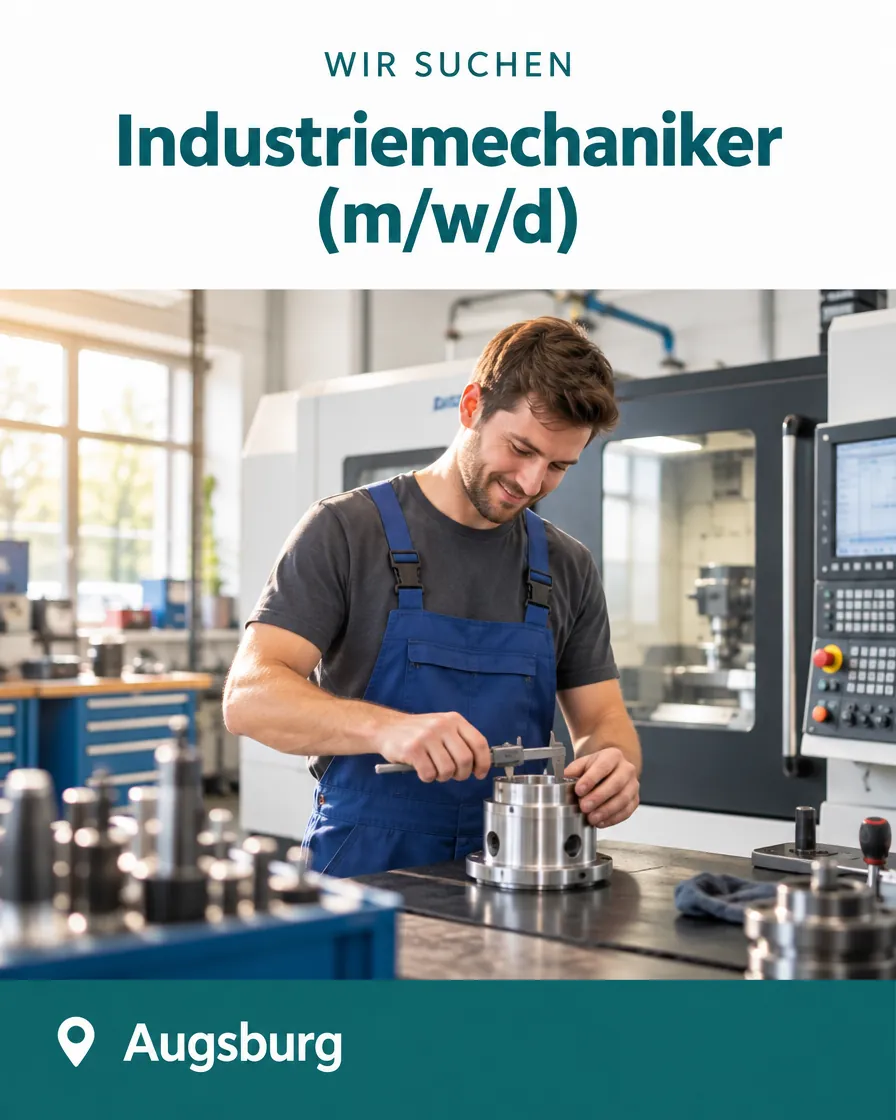
Ergebnis mit GPT Image 2.5 (über Higgsfield), unverändert übernommen. Eingesetzte Werte (4)
- ARBEITSPLATZ
- a bright CNC workshop
- JOBTITEL
- Industriemechaniker (m/w/d)
- MARKENFARBE
- deep teal (#0F6E6E)
- STANDORT
- Augsburg
Grafik, die eine offene Stelle im Feed ankündigt.
Recruiting post. Top: the line "Wir suchen" in small uppercase letters, below it the job title "[JOBTITEL]" in large bold sans serif. Middle: photorealistic image of a typical workplace for this role, [ARBEITSPLATZ], medium shot at eye level, 35mm lens look at f/4, warm daylight from the side, soft shadows, a tool or object in the foreground for depth. Bottom: a bar in [MARKENFARBE] with the text "[STANDORT]" on the left. Clear vertical stacking with even spacing. Palette of [MARKENFARBE], white and natural photo colors. Clean, friendly, modern mood. 4:5 portrait format. No other text.
Platzhalter ausfüllen 4
Ein Gegenstand im Vordergrund („a tool in the foreground“) macht den Arbeitsplatz greifbar. Ergänze (m/w/d) oder eure Formulierung im Text des Posts, in der Grafik wird sie oft unleserlich klein.
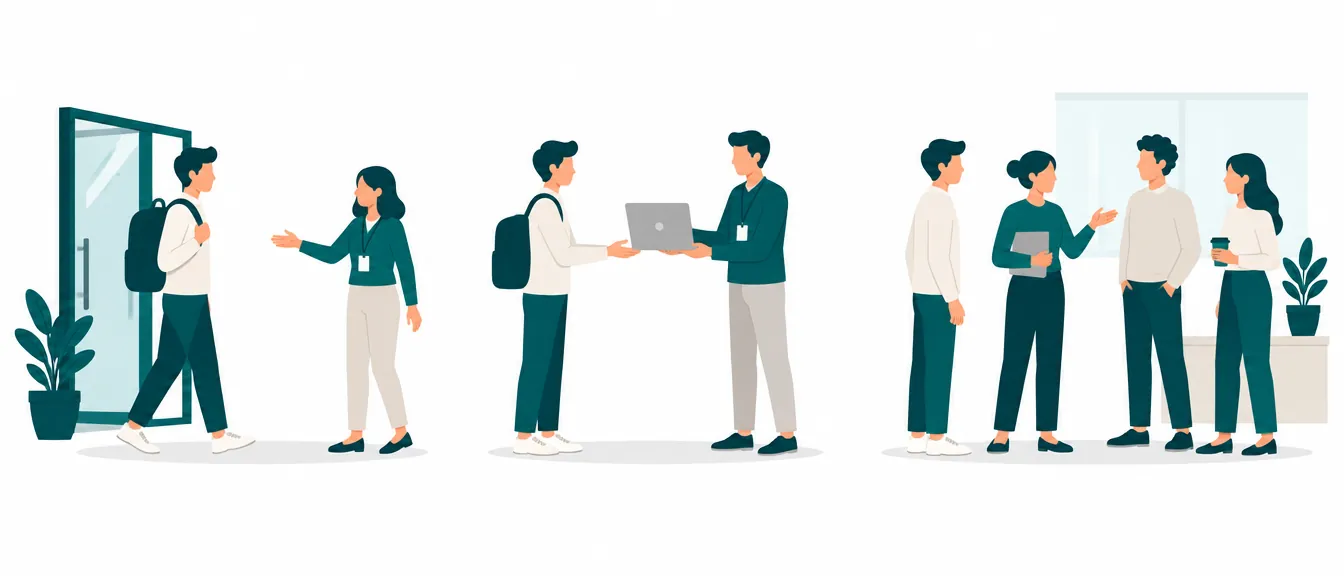
Ergebnis mit GPT Image 2.5 (über Higgsfield), unverändert übernommen. Eingesetzte Werte (2)
- MARKENFARBE
- deep teal (#0F6E6E)
- UNTERNEHMENSTYP
- software company
Grafik für Onboarding-Unterlagen oder Intranet.
Friendly flat illustration of a new employee's first day at a [UNTERNEHMENSTYP], told as three small scenes from left to right: welcomed at the entrance, receiving a laptop, meeting the team. Each scene a medium shot in straight side view, same scale and ground line in all three. Flat color fills, one soft shadow shape under each figure, no realistic lighting. Even gaps between the scenes, a generous white margin. Simplified characters without detailed faces, limited palette of [MARKENFARBE] and soft neutrals, consistent line weight. Warm, welcoming mood. Landscape 3:1 format. No text.
Platzhalter ausfüllen 2
„same scale and ground line“ hält die drei Szenen wie einen Comicstreifen zusammen. Für eine Serie im Intranet lädst du die erste Illustration bei den nächsten als Stilreferenz hoch.
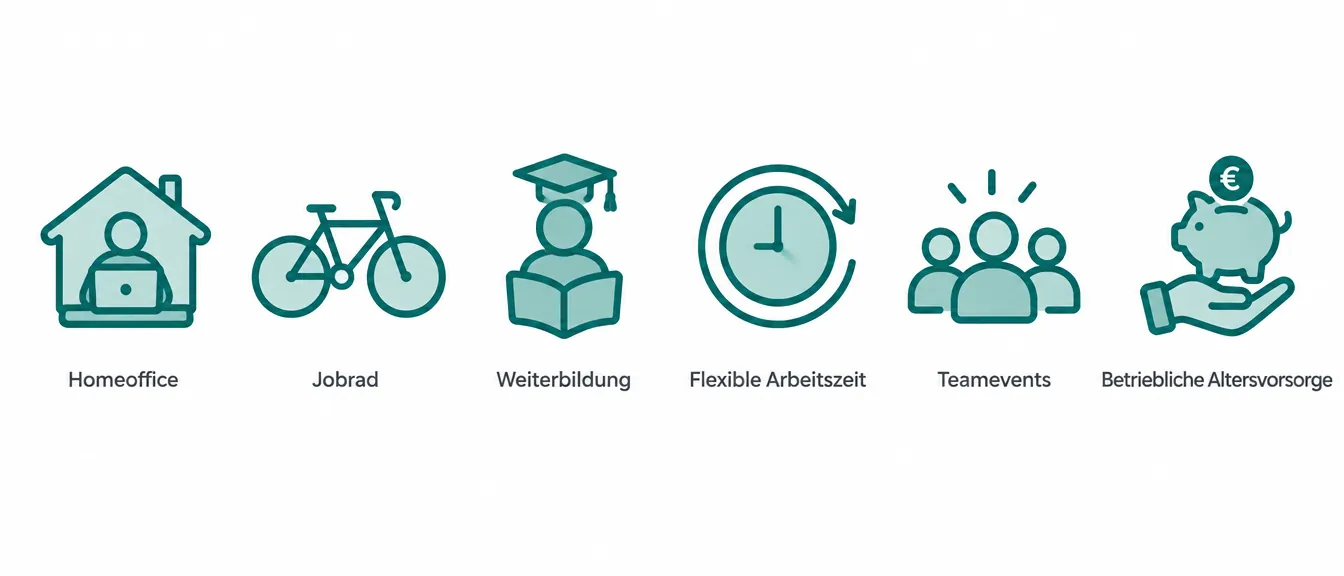
Ergebnis mit GPT Image 2.5 (über Higgsfield), unverändert übernommen. Eingesetzte Werte (3)
- ANZAHL
- six
- BENEFITS
- Homeoffice, Jobrad, Weiterbildung, flexible Arbeitszeit, Teamevents, betriebliche Altersvorsorge
- MARKENFARBE
- deep teal (#0F6E6E)
Icons für die Benefits-Sektion der Karriereseite.
Set of [ANZAHL] matching icons in a single row representing these employee benefits: [BENEFITS]. Flat straight-on view, every icon at identical size. Rounded line icons with a soft fill in [MARKENFARBE], identical stroke width, no gradients or lighting effects. Centered row, even spacing, equal margins. Under each icon, its benefit name in a small dark sans serif font. White background, [MARKENFARBE] and dark gray only. Friendly, tidy mood. Wide landscape format. No other text.
Platzhalter ausfüllen 3
Bis etwa sechs Icons pro Bild bleiben die Abstände sauber; für mehr erzeugst du zwei Reihen getrennt.
Ausgangsbild: Beispiel aus dem Prompt „karriere-team“. Ergebnis mit GPT Image 2.5 (über Higgsfield), unverändert übernommen. Eingesetzte Werte (1)
- NEUER_HINTERGRUND
- a bright, modern factory hall with machines in the distance
Vorhandenes Foto mit neuem, ruhigem Hintergrund versehen.
Edit the uploaded photo: replace only the background with [NEUER_HINTERGRUND]. Keep the main subject exactly as it is: same pose, proportions, colors, clothing and lighting direction. Build the new background for the original camera: same camera height, same perspective and horizon line, same lens feel with a softly blurred background as if shot at f/2.8. Match light direction, color temperature and contrast of the new background to the light already on the subject, and add a faint rim light where the background is brighter. Keep the subject in its current position in the frame. Same color grade and grain as the original. Do not add any text or objects.
Platzhalter ausfüllen 1
Kamerahöhe und Horizont verraten einen Hintergrundtausch am schnellsten: Ist das Original auf Augenhöhe fotografiert, liegt der Horizont im neuen Hintergrund auf Höhe der Augen. Mit einer Maske in der API grenzt du den Bereich zusätzlich ein.
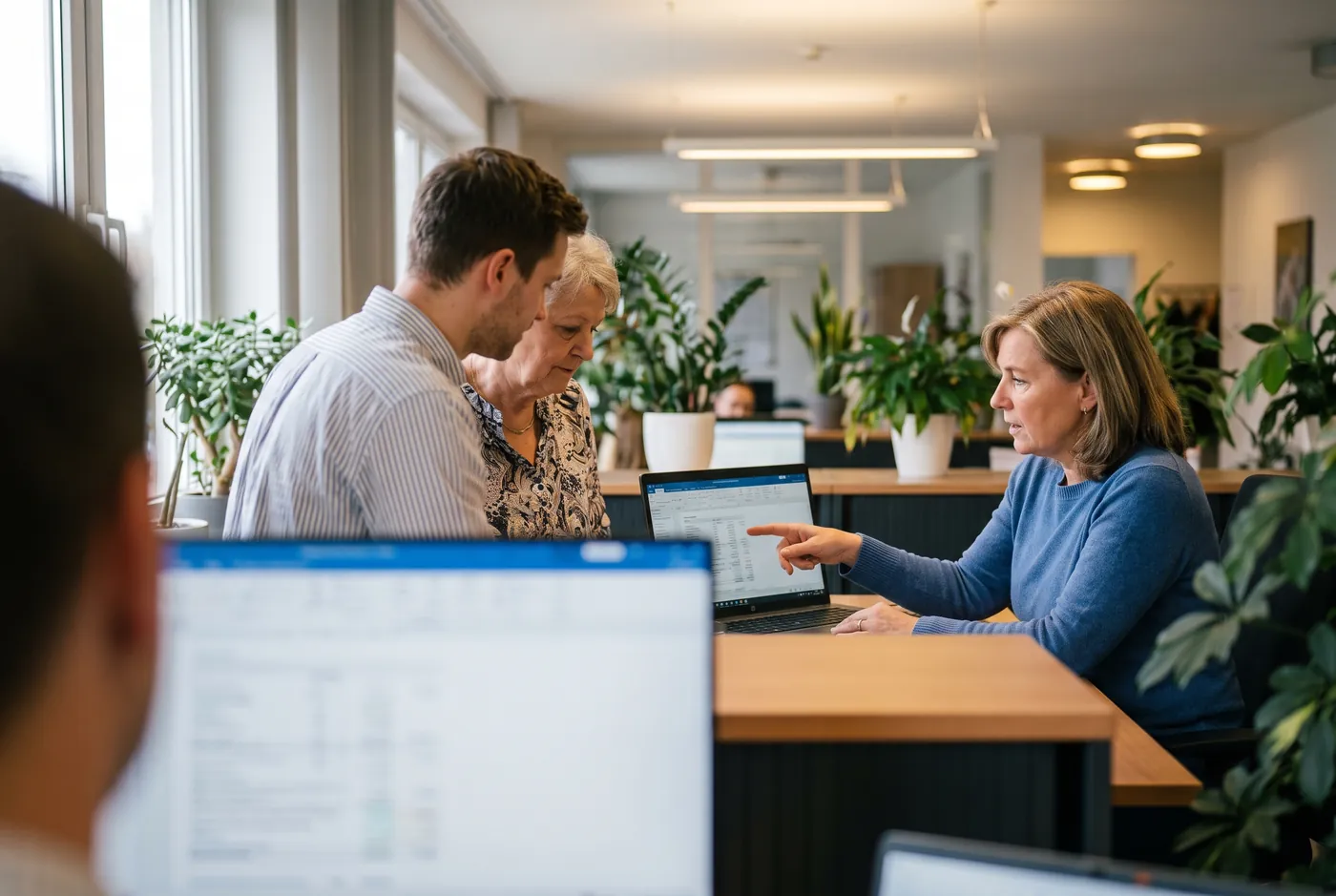
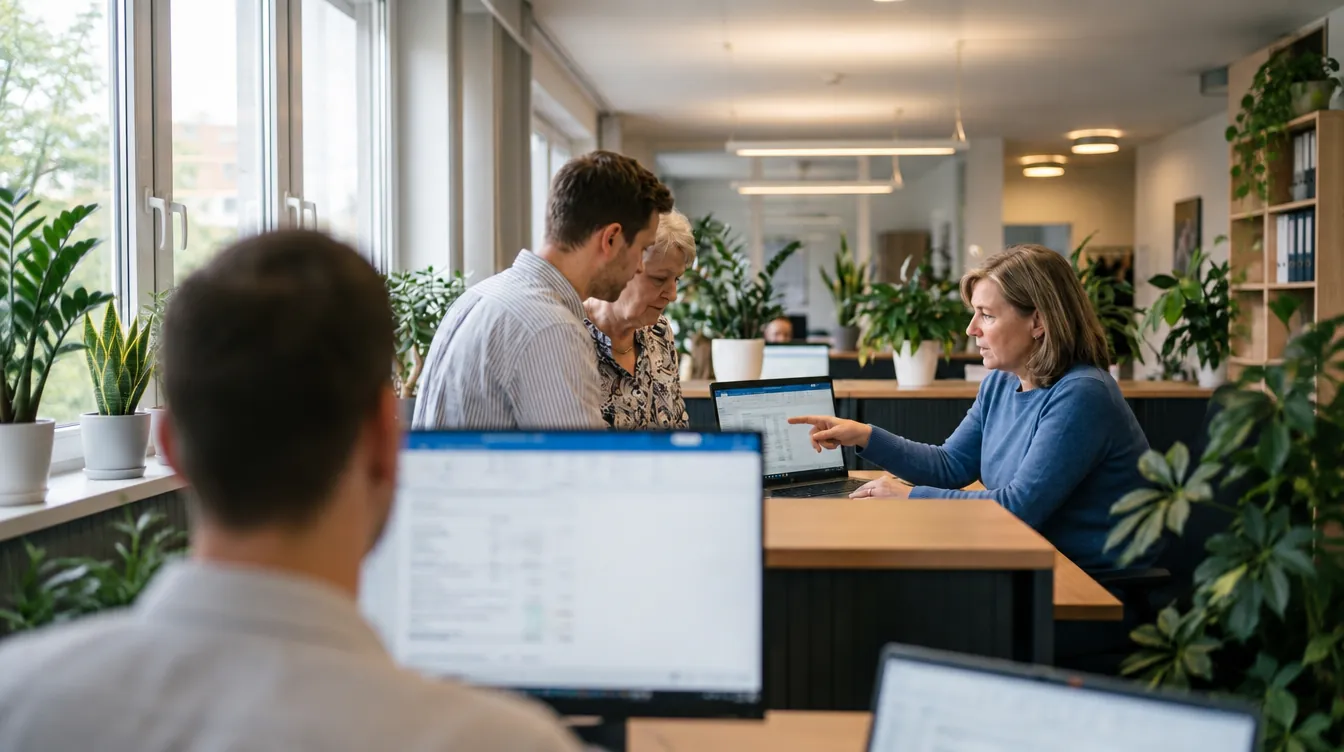
Ausgangsbild: Beispiel aus dem Prompt „team-arbeitsalltag“. Ergebnis mit GPT Image 2.5 (über Higgsfield), unverändert übernommen. Eingesetzte Werte (2)
- ERWEITERUNG
- more of the office with tall windows, shelves and plants
- SEITE
- left
Hochformat-Foto für Website-Header oder Folie ins Querformat bringen.
Extend the uploaded image to a 16:9 landscape format. Keep the original image content unchanged and continue the scene naturally on both sides: [ERWEITERUNG]. Extend more on the [SEITE] side, so the original subject ends up on a third with calm space for text. Continue the same camera position, eye height and lens perspective, so vertical lines and the horizon line up seamlessly. Same light direction, color temperature, depth of field and level of detail, areas further from the subject may fall slightly softer. Same color grading and grain. No new people, no text.
Platzhalter ausfüllen 2
Die Seite, auf der mehr Platz entsteht ([SEITE]), entscheidet, wo später Text hinpasst. Beschreibe, was links und rechts weitergehen soll (zum Beispiel „more of the office with windows“), sonst erfindet das Modell beliebige Details.
Ausgangsbild: Beispiel aus dem Prompt „ad-headline-feed“. Ergebnis mit GPT Image 2.5 (über Higgsfield), unverändert übernommen. Eingesetzte Werte (2)
- ALTER_TEXT
- Steuern? Erledigt.
- NEUER_TEXT
- Taxes? Done.
Bestehende Grafik mit neuem oder übersetztem Text versehen.
Edit the uploaded graphic: replace the text "[ALTER_TEXT]" with "[NEUER_TEXT]". Keep font style, size, color, alignment and position as close to the original as possible. If the text sits on a surface in perspective, follow that perspective, and keep the existing light, shadows and texture on it. Leave every other part of the image unchanged.
Platzhalter ausfüllen 2
Bei mehreren Textstellen besser eine Änderung pro Durchgang machen; OpenAI rät zu kleinen, einzelnen Schritten beim Iterieren.
Ausgangsbild: Beispiel aus dem Prompt „karriere-team“. Ergebnis mit GPT Image 2.5 (über Higgsfield), unverändert übernommen. Eingesetzte Werte (2)
- LOOK_BESCHREIBUNG
- warm, slightly desaturated documentary look with soft contrast
- FARBTEMPERATUR
- 4800K
Uneinheitliche Fotos für Website oder Präsentation angleichen.
Apply a consistent color grade to the uploaded photo: [LOOK_BESCHREIBUNG]. Keep composition, framing, camera angle, people, objects and details unchanged. Only adjust color, contrast and light mood: set the white balance to [FARBTEMPERATUR], keep skin tones natural, soften the highlights, lift the blacks slightly for a matte finish and add fine, even grain. Photorealistic result, no added text, no frame.
Platzhalter ausfüllen 2
Fang beim Weißabgleich an: Oft wirkt eine Serie nur deshalb uneinheitlich, weil die Fotos zwischen 3200K und 6500K schwanken. Lade zusätzlich ein Beispielbild im Ziel-Look hoch und schreib „match the color grading of the second image“.


Kein Prompt passt zu deiner Suche.
ChatGPT Business: Preise, Datenschutz und Alternativen
Weitere Bild-Prompts
Häufige Fragen zu ChatGPT Images 2.5 (GPT-Image-2.5)-Prompts
Wie erstelle ich mit ChatGPT ein Bild?
Du beschreibst das gewünschte Bild im Chat, ChatGPT erzeugt es mit dem Bildmodell Images 2.5. Am besten nennst du Szene, Motiv, Details, Format und was nicht im Bild sein soll. Für Änderungen antwortest du im selben Chat.
Welches Bildmodell nutzt ChatGPT aktuell?
Seit dem 8. September 2026 ist es ChatGPT Images 2.5. In der API stehen dafür gpt-image-2.5-flare und gpt-image-2.5-sunburst bereit, ältere Modelle wie gpt-image-2 laufen laut OpenAI-Leitfaden weiter.
Soll ich Bild-Prompts für ChatGPT auf Deutsch oder Englisch schreiben?
ChatGPT versteht deutsche Bild-Prompts. Unsere Vorlagen stehen auf Englisch, weil Fachbegriffe aus Fotografie und Design dort eindeutiger sind. Den Text, der im Bild erscheinen soll, schreibst du in der gewünschten Sprache in Anführungszeichen.
Kann ChatGPT Text in Bilder schreiben?
Ja, das gehört zu den Stärken des Modells. Setze den Text in Anführungszeichen und beschreibe Schrift und Position. OpenAI weist trotzdem darauf hin, dass die Textdarstellung nicht fehlerfrei ist, also jedes Wort prüfen.
Kann ich mit ChatGPT ein Bild bearbeiten?
Ja, du lädst das Bild hoch und beschreibst die Änderung. Schreib dazu, was unverändert bleiben soll, und ändere pro Runde möglichst nur eine Sache. Für Hintergrundtausch, Formaterweiterung und Textersatz findest du oben fertige Vorlagen.
Ist die Bilderstellung in ChatGPT kostenlos?
Images 2.5 steht laut OpenAI in allen ChatGPT-Tarifen bereit, auch im kostenlosen. Für Bilder gelten im Free-Tarif eigene, strengere Limits; ChatGPT zeigt an, wenn du sie erreicht hast.
Welche Formate kann GPT Image erzeugen?
In der API sind Seitenverhältnisse von 1:3 bis 3:1 möglich, bis 3840 Pixel pro Kante; empfohlen sind 1024 x 1024, 1536 x 1024 und 1024 x 1536. Ausgabe als PNG, JPEG oder WebP. In ChatGPT nennst du das Format im Prompt, etwa „16:9 landscape“.
Was ist der Unterschied zwischen Flare und Sunburst?
Flare ist laut OpenAI auf schnelle, hochwertige Alltagsbilder ausgelegt und liefert mit der halben Latenz von GPT-Image-2 bessere Bilder. Sunburst arbeitet länger und ist für Aufgaben gedacht, bei denen es auf präzise Bearbeitung ankommt.